How to Install FX Monitor
Learn how to install FX Monitor EA on your MetaTrader 4 or MetaTrader 5 terminal and connect your trading account to FX Monitor in just a few steps. The Expert Advisor runs directly in your terminal, automatically collecting trading statistics and syncing them to your personal dashboard in real time — no manual exports or third-party tools required. This guide covers everything from downloading the EA and configuring terminal permissions to attaching it to a chart and entering your API key.
FX Monitor EA is an Expert Advisor for the MetaTrader terminal that automatically collects statistics from your trading account and sends them to your FX Monitor dashboard in real time.
🔒 Security note: FX Monitor EA does not require Allow Live Trading — you can disable it for the EA or for the terminal entirely. The EA only reads your account data and trade history; it cannot place, modify, or close any orders. It is completely safe and has no impact on your trading activity.
Step 1. Get Your API Key
Every FX Monitor user is assigned a unique API Key upon registration. You can find it in one of two places:
- My Profile — your account details page
- Accounts & Portfolios → Add Account — when adding a new trading account

Copy the key and keep it handy — you will need it when configuring the EA.
Step 2. Download FX Monitor EA
🔗 Download the FX Monitor Expert Advisor for MetaTrader 4 here: Download >>
🔗 Download the FX Monitor Expert Advisor for MetaTrader 5 here: Download >>
The EA reads your account information and trade history, and transmits this data to the FX Monitor server via API. No other access is required.
Step 3. Allow Web Requests and DLL in the Terminal
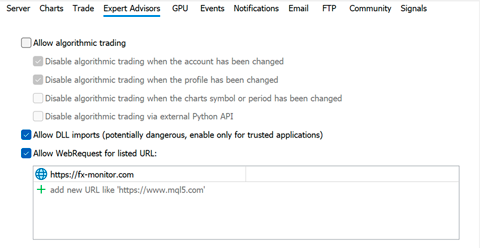
For the EA to be able to send data to the server, you need to enable network access in the terminal settings.
Go to: Tools → Options → Expert Advisors
Enable the following permissions:
- Allow WebRequest for listed URL — add the address:
https://fx-monitor.com - Allow DLL imports
Step 4. Install the EA in the Terminal
Copy the downloaded EA file into the folder: MQL5 → Experts
- MetaTrader 4: Copy the file
FX_Monitor.ex4into the folder: MQL4 → Experts You can open this folder directly from the terminal: File → Open Data Folder → MQL4 → Experts - MetaTrader 5: Copy the file
FX_Monitor.ex5into the folder: MQL5 → Experts You can open this folder directly from the terminal: File → Open Data Folder → MQL5 → Experts
Step 5. Attach the EA to a Chart and Enter Your API Key
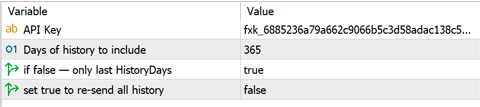
In the terminal, refresh the Expert Advisors list (right-click the Expert Advisors section → Refresh), then drag FX Monitor EA onto any open chart.
In the EA settings, enter your API Key from Step 1 and click OK.
All Done
Once successfully connected, your trading account will appear in the My Account section of your dashboard. Data will start syncing automatically.
Having trouble? If your account did not appear or the EA fails to connect — please reach out to our support team: fx-monitor.com/portal/tickets.php